One of the easiest way to attack WordPress blog is by targeting some script of admin interface or by brute force attack and it has been found that having a good password is not enough. I take two additional steps to protect my admin interface from even the most determined hacker while allowing access to […]

Most people use Amazon Alexa to listen to music, we use it also to listen to Mantras/Stotrams like Gayatri mantra etc. However, as you read this article you will realize that it can be used for much more useful and potentially life-saving purposes. Note: if you are concerned about security, just mute it when you […]
For the first time, you can now get Bengali News on Amazon Alexa Flash Briefings. How to enable Bengali news for Alexa devices Go to alexa.amazon.in (for Indian users) Click on Settings and then click on Flash Briefing Click on Get more Flash Briefing content and search for Bengali News Click on Bengali News India […]
I upgraded to Ubuntu 18.04 without issues. However, after a certain update suddenly the laptop touchpad stopped working. I tried few fixes suggested and ended up disabling even the keyboard. I didn’t have time to debug and left it as it is for few days. Today, finally I looked into it and found a simple […]
Categories
Nginx surpasses Apache Web Server
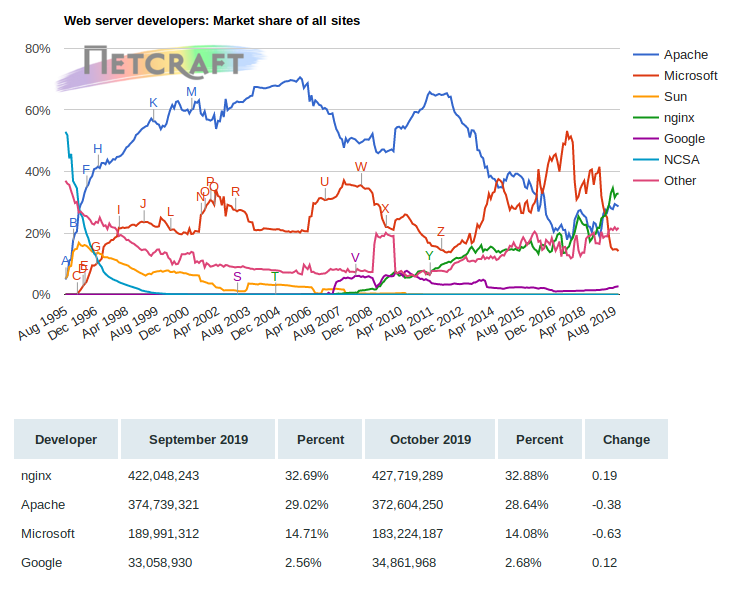
Nginx has surpassed Apache Web Server since April this year and has increased the lead since. According to Netcraft report from October 2019, Ngnix is now has 32.88% market share whereas Apache Web Server has 28.64% only and Microsoft is lagging far behind at 14% only.
I will show a simple tip to test nginx configuration on live site ( production server ) before deployment. This is especially useful for server serving many different sites. A little mis-configuration, even a missed comma, can instantly bring down hundreds or even thousands of sites. So you should test it first: If it fails […]
Jekyll creates pages with .html extension. You may not want the archaic .html file or your existing site may already have links without the .html at the end. In either case we need to show the pages without the .html extension at the end. This requires setting up nginx rewrite rules (for static site generated […]
Static Sites are all the rage these days because they are: super-fast (static pages which can also be cached in memory for further speed) impossible to hack (how can you hack non-executable html pages?) very low load on the server (minimal processing) However, you will often find broken links due to minor changes in the […]
Jekyll, the wonderful static sites generator that new Taragana corporate site is built upon, provides a navigation menu (in the default theme) which is essentially a list of all pages on the sites. This does not work well for sites with large number of pages, corporate sites and especially sites with deep page hierarchy. Jekyll […]
Problem Statement Projects are checked in version control systems like git. You don’t want your credentials to be checked in git too. As such you need a way to easily inject your credentials in your build while keeping it away from prying eye. Solution The solution is to store it in ~/.gradle/gradle.properties. This file is […]